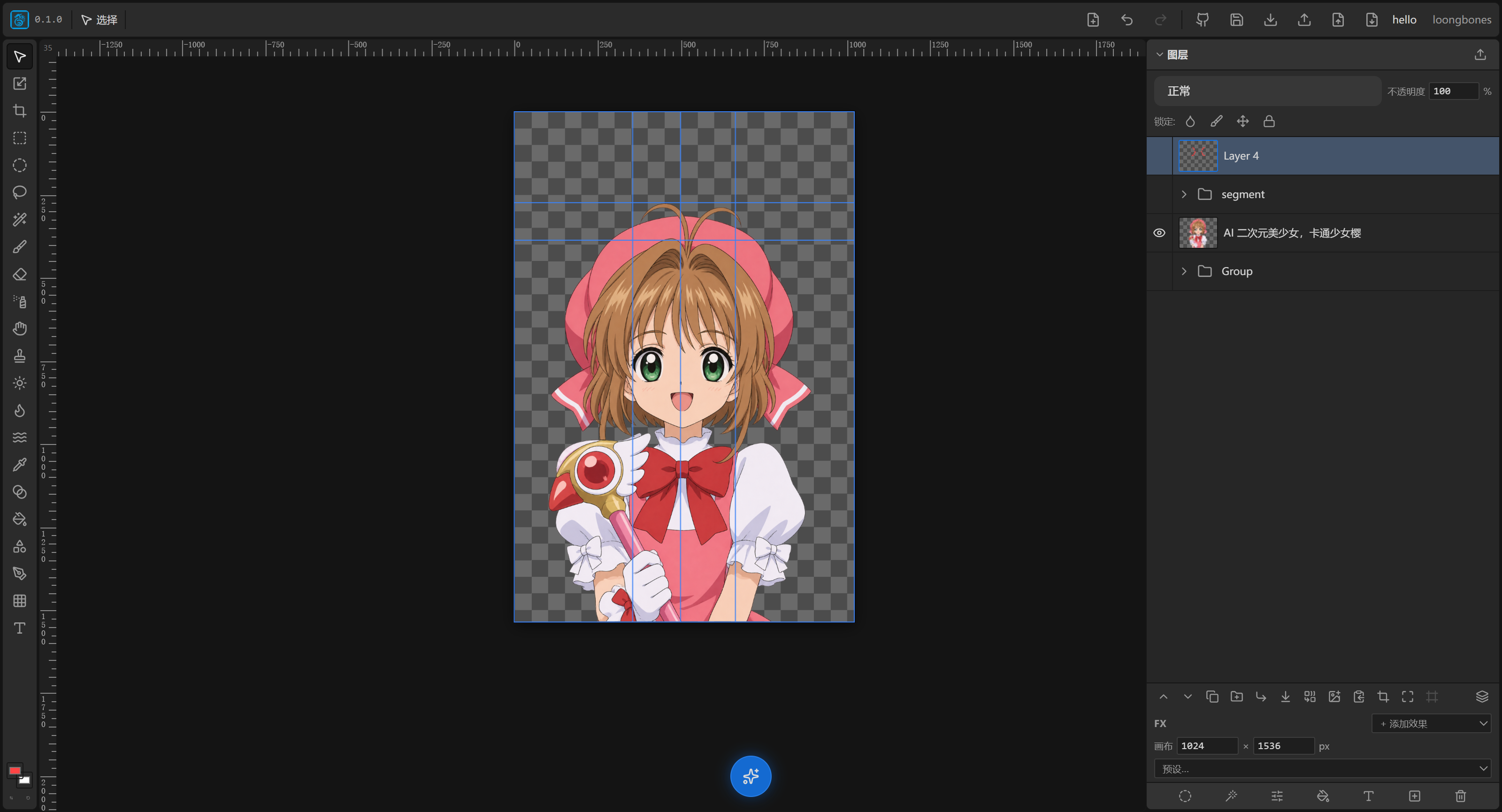
Canvas & View
Zoom & pan
- Zoom: scroll the mouse wheel to zoom in/out centered on the cursor. Range from 5% to 2000% — enough for both detail and the big picture.
- Pan: hold Space and drag, or drag with the right mouse button, to temporarily switch to the hand tool and move the canvas.
- Zoom percentage: the top-left corner, where the horizontal and vertical rulers meet, shows the current zoom percentage.
- Fit view: click the top-left corner where the horizontal and vertical rulers meet (which shows the current zoom percentage) to scale the canvas content to exactly fill the window.
Canvas size & presets
In the Canvas area of the right Layers panel you can set canvas width/height (range 64–4096 px). Several preset groups are also provided — pick instead of typing:
- Web: avatar, leaderboard, half-page, rectangle, skyscraper and other ad sizes
- Display: XGA to DCI 4K
- Phone: mainstream ratios like 18.5:9
- Misc: CD cover, etc.
- Fit to layer: with a layer selected, a fit button appears to the right of the canvas width/height fields; click it to auto-fit the canvas to the selected layer's width and height.
Rulers & guides
- Rulers sit above and to the left of the canvas, showing ticks and the current pointer position (a blue triangle marker).
- You can drag out guides to help alignment.
Grid & snapping
- Moving a layer auto-"clicks" to the guides, canvas edges, center, or other layers' edges and centers.
- Snapping can also align "edges, gaps, equal spacing" — handy for neat layouts.
- In the transform tool (R) properties bar you can set the snap grid size (0 disables it).